Pixelup - AI Photo Enhancer
- 3.9
- Rating
- 10.00M
- Installs
- Free
- Price

 Analysis by App-foxy
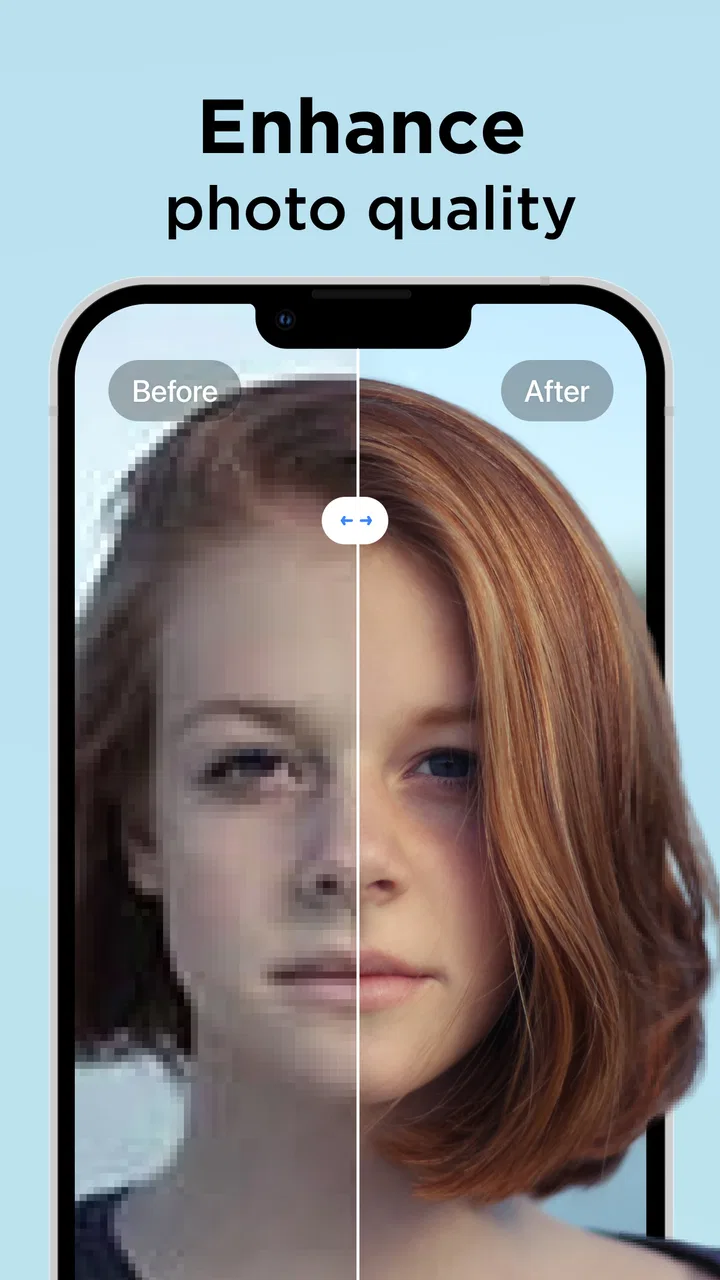
Old photos rarely need a miracle; they usually need a little help becoming easier to see. That is where Pixelup - AI Photo Enhancer makes a strong first impression. I used it as a photography app for the familiar jobs people actually care about: making a soft portrait clearer, giving a black-and-white family picture some color, and trying to rescue an image that looked fine on a phone but weak when shared. My first reaction was positive because the process feels direct rather than technical. You choose a picture, let the app process it, and judge the result without spending time learning photo-editing terminology.
That simplicity is the main reason I would recommend trying it. Pixelup is made by Codeway Dijital, is free to install, and is rated for Everyone. It has passed the early curiosity stage with over 10 million installs, while its average sits at 3.9 from around 103 thousand ratings. Those figures suggest a widely tested app with a mixed but generally interested audience. The more important question, though, is whether it remains useful after the first few impressive transformations. In my experience, it can earn a place on a phone, but mainly for people who regularly handle older, blurry, or monochrome pictures rather than for anyone looking for a complete everyday editor.
Why the first week feels so satisfying
The first week with Pixelup is driven by visible before-and-after changes. A slightly blurred face can look more defined, small details may become easier to recognize, and a faded black-and-white image can feel more emotionally present after colorization. I found this especially appealing with personal pictures, where “better” does not necessarily mean technically perfect. Even a modest improvement can make an old photograph more enjoyable to send to a relative or keep in a digital album.
You May Also Like

 Blood Strike: 2.5 Anniversary
Blood Strike’s Loadouts Turn Every Drop Into a Tactical Gamble
A close look at Blood Strike’s custom loadouts: how fast access to signature weapons reshapes its battle royale rhythm, rewards preparation, and narrows the gap between fights.

 Pandora - Music & Podcasts
Pandora’s Music Is Easy to Start, but Harder to Recover
Pandora’s strength is its low-effort path from a seed to a station. Its weak spot is how much confidence it asks you to place in connection, setup, and quiet recovery.

 8 Ball Pool
 Is Built on Rivalries, Rematches, and Routine
A close look at the rivalries, rematches, shared routines, and unanswered safety questions that turn a quick pool match into a persistent mobile community.

 Samsung Music
’s Quiet Strength Is Playing What You Already Own
Its reach comes less from spectacle than from dependable access to a personal library. That simplicity is both the app’s strongest retention engine and its ceiling.

 AccuWeather: Weather Radar
AccuWeather Review: A Quick, Clear Forecast for Everyday Decisions
For everyday plans, the best forecast is the one you can understand quickly. AccuWeather makes rain timing, radar, and local conditions easy to act on, with a few trade-offs.

 Hill Climb Racing
Why Hill Climb Racing Still Turns Crashes Into One More Run
A tiny car, a bumpy hill and one more upgrade: Hill Climb Racing keeps resurfacing because its simple chaos makes every near-miss feel personal.
More From Our News Desk



The app’s focus is narrower than that of a traditional editor, and that is a benefit at the beginning. Instead of presenting me with a large collection of sliders, curves, layers, and correction tools, it centers attention on enhancement. Someone who does not know how to adjust sharpness or repair contrast can still start quickly. The store summary highlights unblurring, sharpening, improving photo quality, and colorizing black-and-white images, and those tasks describe the app’s appeal better than a long list of editing controls would.
A realistic use case is a family gathering where someone brings out a printed photograph from years ago. I can photograph or select the image, run an enhancement, and share the result in a group chat without first opening a desktop editor. The result will not replace a professional restoration, but it can turn a tiny, hard-to-read face into something the family can discuss. That emotional usefulness is more convincing than using the app on random internet images.
Colorization is also a good first-week experiment, although I treat it as an interpretation rather than a recovery of historical truth. When an old image has no color information, the app has to estimate suitable tones. That can create a warmer, more vivid picture, but it does not prove that clothing, walls, or scenery originally looked exactly that way. I prefer using the color version for sharing and keeping the original beside it for reference. Colorization is best treated as a creative second version, not as an unquestionable restoration.
The same caution applies to sharpening. A sharper-looking image can be more pleasant, but sharpening cannot genuinely restore every detail that the camera never captured. On faces, an aggressive result may make skin look unnatural or edges appear too strong. I get the best results when the original is recognizable but merely soft, not when it is extremely tiny, heavily compressed, or badly damaged. This is an important expectation to set before using the app: AI enhancement can improve the impression of detail, but it cannot turn every poor source into a faithful high-resolution photograph.
Small workflow choices that improve the result
My most useful habit was to keep the original file untouched and compare versions rather than immediately replacing anything. If the enhanced image looks more dramatic at first glance, I check whether facial features still look believable and whether fine patterns have turned into invented textures. This takes only a moment and prevents the common mistake of confusing stronger contrast with genuine improvement.
I also choose the cleanest source available. If the same picture exists in a messaging app, a cloud album, and a camera roll, I use the version with the least visible compression. Starting with a screenshot or a repeatedly forwarded copy gives the app less reliable material to work with. This is not a special button inside Pixelup; it is a practical workflow decision that makes the app’s enhancement more useful.
For portraits, I pay particular attention to eyes, teeth, hair, and small jewelry. These areas can reveal whether the processing has preserved the person or merely produced a convincing-looking approximation. When the face remains natural, the result feels worthwhile. When details become overly smooth or oddly defined, I keep the original and move on instead of trying to force a bad source into a polished image.
Another helpful approach is to make one change at a time. I do not judge colorization, sharpening, and general enhancement as if they were all the same operation. A picture may benefit from a clearer monochrome version but look artificial after color is added. Separating those decisions makes it easier to choose the version that serves the memory, rather than automatically choosing the most processed one.
What remains useful after the novelty fades
After the first week, the app’s value depends on whether I have a continuing stream of suitable photos. Pixelup is not the kind of tool I open every day to adjust the lighting of every picture I take. For current photography, a normal camera editor is usually faster and more flexible. The lasting use appears in occasional projects: organizing a family archive, preparing images for a memorial slideshow, improving a scanned album, or making older pictures more readable before sending them to someone.
That makes it a useful specialist rather than a universal photo companion. I would keep it installed if I were gradually digitizing family photographs or often receiving low-quality images from relatives. I would be less likely to keep it if my photo needs were limited to cropping, rotating, adding text, or making quick social posts. Those jobs are handled more naturally by the built-in gallery editor or a general-purpose design app.
The app is also more valuable when the emotional importance of an image is high. A technically imperfect improvement can still matter if it helps me see a grandparent’s expression or share an old childhood scene with someone who remembers it. That is a different standard from professional restoration, where color accuracy, texture preservation, and print quality matter much more. Pixelup works best when the goal is a more enjoyable personal copy, not archival certification.
Its free entry makes experimentation easy, but the longer-term decision becomes more complicated once advanced processing or repeated use leads toward in-app purchases. The available purchases range from $0.49 to $69.99 per item, so I would avoid assuming that every useful workflow remains entirely free. Before committing to a larger restoration project, I would test the app on several representative images and check what the specific process requires. A single successful preview does not tell me whether the full project will be convenient or economical.
This is one reason I would not process an entire archive blindly. I would select a small group containing portraits, landscapes, faded prints, and difficult images, then compare the outcomes. If the app handles the kind of damage in my collection well, it may justify continued use. If it only succeeds on already-decent pictures, a desktop restoration tool or a specialist service may be a better use of time and money.
Where it beats ordinary alternatives
Compared with a phone’s standard editing tools, Pixelup gives me a more focused route to tasks such as unblurring and colorizing. Built-in editors are excellent for exposure, cropping, rotation, and simple filters, but they generally do not make the same kind of AI-assisted restoration attempt. Pixelup is easier when I want to ask, in effect, “Can this old picture be made more presentable?” rather than manually construct the answer from several adjustments.
Compared with a full desktop editor, it is less intimidating and much better suited to a quick personal experiment. I do not need to understand masks or restoration layers before seeing whether an image can be improved. The trade-off is control. A professional workflow lets me inspect and correct individual areas, preserve texture more carefully, and make decisions that the automated process may combine into one result. For a photographer, archivist, or designer who needs repeatable precision, Pixelup should be a first pass at most, not the entire toolkit.
Compared with online enhancement services, a dedicated mobile app feels more convenient when the pictures are already on my phone and the goal is immediate sharing. Still, convenience does not eliminate the need for judgment. I would not upload a sensitive image casually simply because the process is quick, and I would avoid treating any automated output as a secure archival master. For ordinary family pictures, the workflow is comfortable; for confidential or professionally valuable material, I would choose a tool and process that give me more deliberate control.
Maintenance, friction, and the reasons I might stop using it
The maintenance burden is not mainly about learning the interface. It comes from managing expectations and deciding which results deserve to be kept. Every successful enhancement creates another version of a picture, and over time that can make a gallery messy. I prefer a simple naming or album habit: retain the original, keep the chosen enhanced copy, and delete failed experiments after comparing them. Without that small discipline, a short restoration session can leave several nearly identical files that are difficult to distinguish later.
Processing time and output quality can also affect whether the app becomes a habit. A quick result is useful when I am standing with someone and want to share a picture immediately. A slower or inconsistent result is less frustrating for a weekend archive project, where I can review images one by one. The important distinction is that Pixelup is more comfortable for selective improvement than for treating a large collection as an automatic batch task.
There is also a psychological source of fatigue: the first dramatic transformation raises expectations for every later photo. Once I have seen one image become noticeably clearer, I may expect the same effect from a damaged scan with missing detail or a face hidden in shadow. That is where disappointment starts. I get more consistent satisfaction when I use it on images that are already legible but need polish, rather than asking it to reconstruct information that is simply not present.
Colorization can create a different kind of fatigue because the output may look attractive while still feeling historically uncertain. If I am preparing a family album, I may enjoy the color version but want to label it mentally as an interpretation. For a serious historical collection, I would keep the monochrome original prominent and use color as an optional presentation. This distinction prevents the app from quietly changing the meaning of the archive.
The current version is 2.0.0 and supports devices running Android 8.0 or later. That makes it accessible to many older Android phones, although the practical experience will still depend on the device and the size or complexity of the image. I would make sure the phone has enough free space for original and enhanced copies, especially if I am working through a family collection. The app is also available as a free download with optional purchases, so I would review the in-app path before starting a large project.
People who want a completely manual workflow should probably skip it. The app’s strength is reducing decisions, while its weakness is reducing decisions. If I need to control exactly how much sharpening affects a particular edge, or if I must preserve every texture without an AI-generated interpretation, I would choose a more traditional editor. Likewise, someone who only wants quick filters for new camera photos will likely find Pixelup too specialized for regular use.
Who can build a lasting routine around it
I can see a lasting routine for someone who digitizes a few photographs each weekend. The workflow is manageable: select the best scan, create an enhanced version, compare it with the original, keep the most natural result, and move to the next image. Another good fit is a person who frequently receives blurry portraits through messaging and wants to make a small selection easier to view. In both cases, the app solves a recurring problem rather than merely providing a novelty effect.
It is less convincing for people who expect one app to manage capture, editing, design, printing, and organized storage. Pixelup’s appeal comes from focused enhancement, not from replacing an entire photography setup. I would pair it with the phone’s gallery or a dedicated backup system rather than making it the center of my photo library.
Before paying for anything, I would answer three practical questions. Does it improve the exact type of photo I have? Do the faces and textures remain believable at the size I plan to share or print? And will I use the result often enough to justify the purchase? Testing those questions on a few images is more useful than judging the app by a single impressive transformation.
My long-term verdict on Pixelup
Pixelup earns its place as a focused tool for rescuing and re-presenting older images, especially when speed matters more than detailed manual control. I like that I can approach a difficult picture without first becoming an editor, and I appreciate the emotional payoff when a familiar face becomes easier to recognize. The app is free to start, accessible to a broad audience, and simple enough for an occasional user to understand quickly.
Its limitations become clearer with continued use. It cannot guarantee faithful reconstruction, colorization should not be confused with historical accuracy, and sharpening may look artificial when the source is too poor. The purchase range also means I would investigate the cost of a particular workflow before making the app part of a large restoration plan. These are not reasons to dismiss it; they are reasons to use it selectively.
My recommendation is strongest for families, casual photo keepers, and anyone with a small backlog of blurry or black-and-white pictures. I would skip it as a primary editor, a professional restoration environment, or a daily tool for modern photos. After the novelty fades, its recurring value comes from a specific habit: choosing meaningful images, improving them carefully, and keeping the original beside the result. If you use Pixelup as a thoughtful restoration assistant rather than an automatic miracle machine, it can remain genuinely useful long after the first experiment.
FAQs for Pixelup - AI Photo Enhancer
01What is Pixelup - AI Photo Enhancer used for?
Pixelup is a photo-editing application designed to improve the quality of old, blurry, pixelated, or low-resolution images. Its AI tools can sharpen faces, enhance details, add color to black-and-white photos, repair damaged pictures, and sometimes animate portraits. It is particularly useful for restoring family photographs, improving social media images, or making pictures captured with older phones look clearer.
02Is Pixelup - AI Photo Enhancer free to use?
Pixelup can usually be downloaded for free, but many of its advanced enhancement and restoration features may require a subscription or in-app purchase. Free users may have access to selected tools, previews, or limited daily processing, while premium functions can remove restrictions and advertisements. Before confirming a trial or subscription, carefully review the price, billing frequency, and cancellation terms shown in the app store.
03Can Pixelup restore very blurry or damaged photos perfectly?
Pixelup can noticeably improve many images, especially portraits with moderate blur, compression, or low resolution, but it cannot recreate every missing detail accurately. The AI may invent facial features, textures, or colors when the original image is severely damaged. Results depend on the photo’s quality, lighting, subject, and level of distortion, so users should treat the output as an enhancement rather than a guaranteed exact restoration.
04Are photos uploaded to Pixelup safe and private?
To process images, Pixelup may need to send photographs to its servers or use cloud-based AI services, depending on the feature and current app version. Users should review the application’s privacy policy and permissions before uploading personal, confidential, or sensitive pictures. Avoid processing images containing private documents or identifiable information unless you understand how the files are handled, stored, and potentially deleted.
05Does Pixelup work on both Android and iPhone?
Pixelup - AI Photo Enhancer is generally available for Android and iOS devices through their official app stores, although supported operating-system versions and specific features can vary. Performance also depends on your phone’s hardware, internet connection, available storage, and the application version installed. Downloading from Google Play or the Apple App Store is recommended to receive legitimate updates and avoid unofficial copies.
Pros
- Upscales low-resolution photos with noticeable detail improvements.
- Colorization can revive old black-and-white family pictures.
- Simple interface makes most enhancement tools easy to access.
- Animation effects add a playful touch to portraits and memories.
- Processes common edits quickly on modern smartphones.
Cons
- Free exports may include watermarks or require watching advertisements.
- AI results can look artificial when faces are blurry or heavily damaged.
- Many advanced effects and tools are locked behind a subscription.
- Some features require an internet connection to process images.
- Enhancement quality varies considerably between different photo types.

Pixelup - AI Photo Enhancer
Gallery